
As software developers, it is important to use a version control system to manage code and work with a team. Git is the most popular version control tool today. 👨💻
🚀 This guide walks through the steps to install and configure Git on a computer so its benefits can be used immediately.
Step 1: Download and install ✅
- Visit the official Git website
- Download the version for the operating system (Windows, macOS, Linux).
- Run the downloaded installer and follow the on-screen instructions to complete the installation.
Step 2: Identity configuration 🔐
All available configuration options can be found in Git Configuration
- Open the terminal (CMD or Windows Command Prompt)
- Configure the user name with the following command:
git config --global user.name "User Name"- Configure the email address with the command:
git config --global user.email "user@email.com"Step 3: Settings configuration
These are just two simple examples of what can be configured. Git offers many ways to customize settings based on how work is preferred. Exploring the possibilities is encouraged.
- Configure console output color with:
git config --global color.ui auto- Configure the default text editor for commit messages (replace "your_editor" with the preferred editor):
git config --global core.editor "your_editor"Bonus 🎁
The next step is to find a place to keep code safe or to collaborate with a team. Alternatives include GitHub, GitLab, and others.
- Create a GitHub account
- Create a repository:
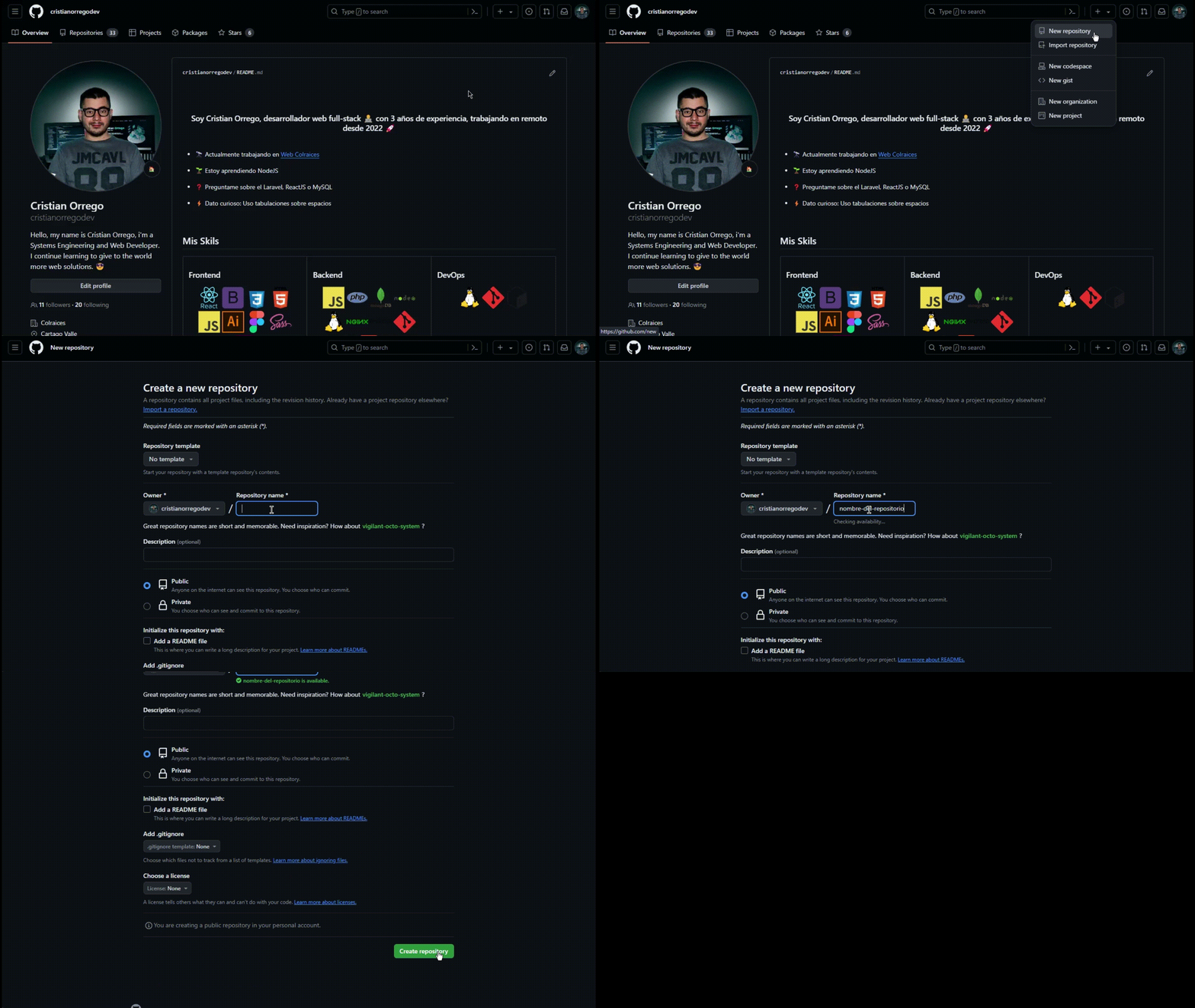
Follow the repository steps to upload the project to GitHub:
# Open the root folder of the project in the terminal
cd "project-path"
Once inside the project, run the following commands:
git init #Initialize the git repository
git add . #Add files to the staging area
git commit -m "first commit" #Commit changes
git branch -M main #Rename the branch
git remote add origin <Repository URL> #Add the remote repository (created in GitHub)
git push -u origin main #Push changes to the remote repository